Introduction
The Read&Write Multi-User Setup Tool allows administrators to configure Read&Write to be deployed across multiple computers on their network. It creates a customized MSI file that can be distributed using your organization's preferred software deployment method, enabling users to access Read&Write without needing to complete additional setup.
This article explains how to create an MSI for network deployment and how to configure Read&Write on a single computer.
Important Requirements
Before using the Multi-User Setup Tool, make sure that:
- Read&Write is already installed on the computer.
- Microsoft .NET Framework 4.8 is installed on the computer.
- The computer is connected to your organization's network.
- You have your Read&Write Product Code, which can be found in your onboarding email.
Create an MSI for Network Deployment
Download the Multi-User Setup tool and run the Read&Write Multi User Setup.exe. This will install the application to your computer and when finished, you’ll find a shortcut to the application on your Desktop.
Run the Read&Write Multi-User Setup from the shortcut on your desktop.
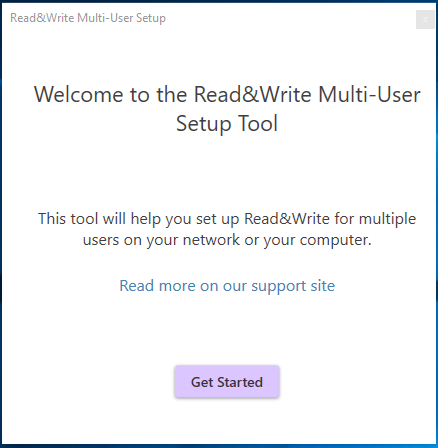
3. On the Welcome screen, click Get Started
4. Select Network of computers
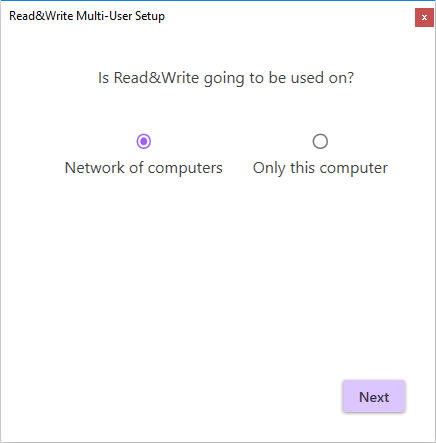
5. Let Windows take care of them will be automatically selected. Click Next

Let Windows take care of them - this will default to storing user settings in the user’s roaming profile.
6. Enter your Product Code. This can be found in your onboarding email received upon purchasing Read&Write.
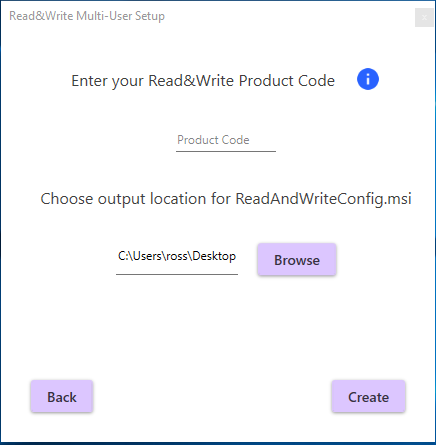
7. Choose where you would like the generated MSI file to be saved. By default, it will be saved to your desktop.
8. Click Create
When the MSI has been created successfully, a confirmation message will appear.
Next Steps
Deploy both:
- The generated MSI file
- The Read&Write installation package
using your organization's preferred software deployment method.
Once deployed, users can launch Read&Write without being prompted to sign in.
How to set up Read&Write on a single computer
Open the Read&Write Multi-User Setup Tool.
Click the Get Started button on the Welcome screen.
Select Only this computer
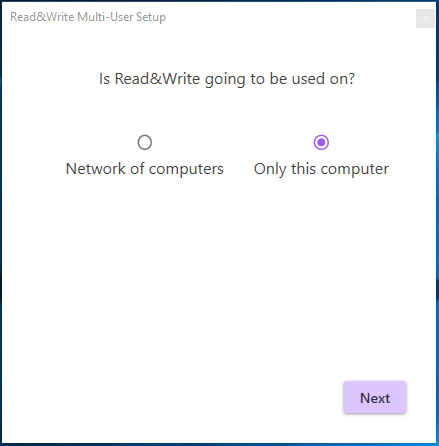
3. Click Next then enter a Product Code.
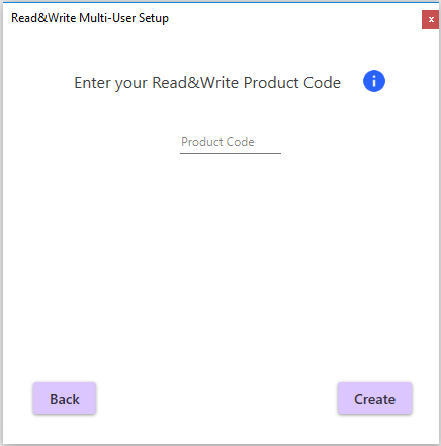
4. Select Create
The setup tool will create the required configuration, and Read&Write will be ready to use on that computer.