This usually happens when your Mac needs a quick security adjustment to allow MindView to fully activate.
The fix is fast, and once it's done, you'll unlock MindView's full, powerful functionality!
Here is the exact step-by-step fix:
-
Go to the Apple Menu (the apple icon in the top-left corner of your screen).
-
Click on System Settings (or System Preferences if you're on an older macOS version).
-
Select Privacy & Security.
-
In the left-hand menu, scroll down and click on Screen Recording.
-
Check the list for MindView.
-
If MindView is listed: Make sure the switch next to it is turned ON (it should look green or blue).
-
If MindView is NOT listed: Click the + button at the bottom of the window, navigate to your Applications folder, and add MindView. Then, make sure its switch is turned ON.
-
-
You will likely be prompted to Quit & Reopen MindView. Click that option to finalize the change!
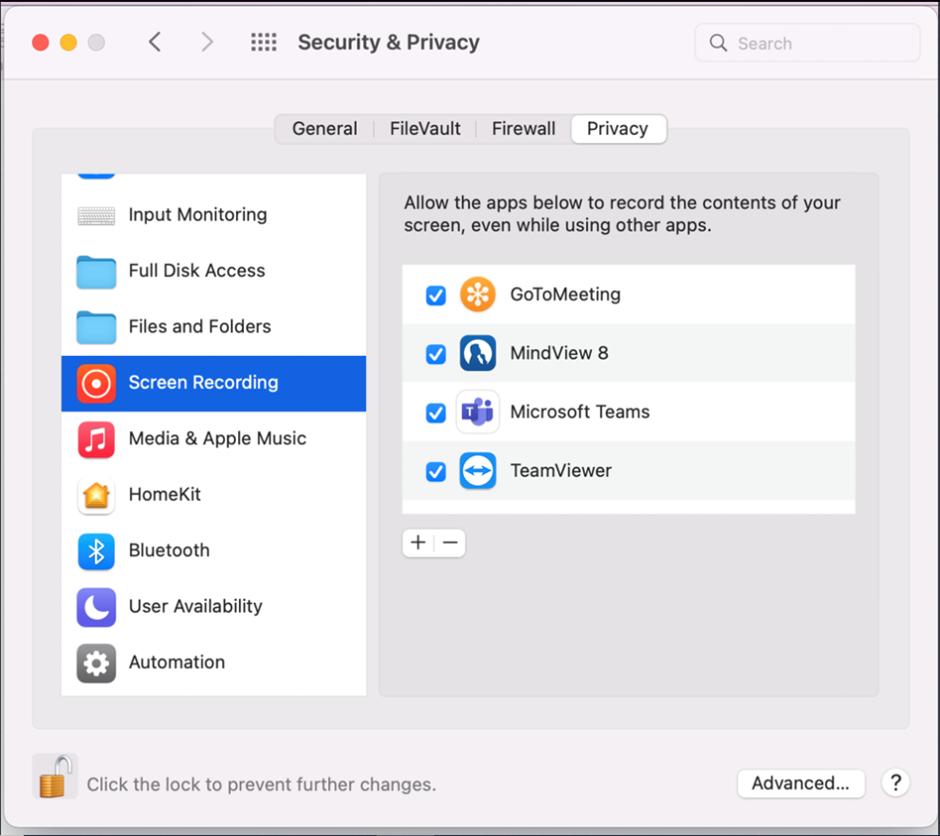
That's the key to getting your software up and running without a hitch! This adjustment gives MindView the green light it needs, ensuring a fantastic and smooth user experience.