This is a quick fix, and it will keep you logged in for a powerful, seamless experience every time you open the program.
The Key to Effortless Login
The behavior you're seeing usually happens because, during a past login, the user selected "No" on the "Stay logged in?" prompt and also checked the "Do not show again" box. This essentially tells MindView to skip that helpful reminder!
But no worries! We are going to instantly unlock the setting that brings that prompt back and keeps you signed in.
Here is the Exact, Easy Step-by-Step Fix:
Follow these three simple steps to implement the change:
Open MindView Options: Click the File tab (top left) and then select Options.
Navigate to Preferences: In the MindView Options window, click on Preferences in the column on the left.
Activate the Prompt: On the right-hand side, look for the option labeled "Show 'Stay logged in?' dialog during login" and set it to Yes.
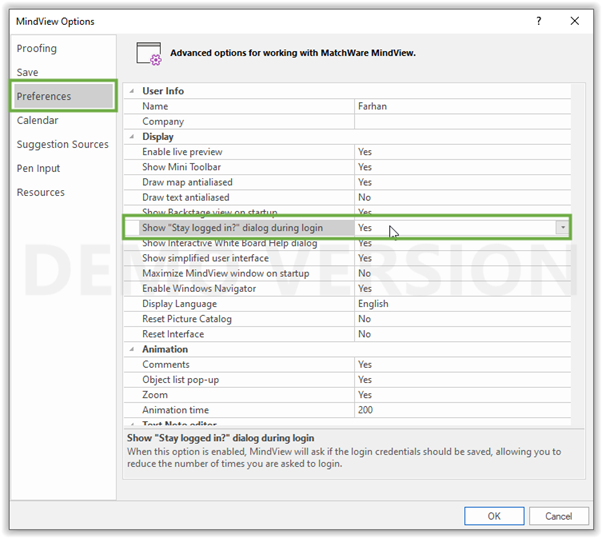 This adjustment immediately gives you the control you need for a faster start!
 This adjustment immediately gives you the control you need for a faster start!
What's Next?
Click OK to save your new setting.
Close and then reopen MindView.
The next time you log in, make sure to select Yes to the "Stay logged in?" prompt (and maybe leave the "Do not show again" box unchecked, just in case!). You will see the result: a fantastic, fast launch directly into your work!