For ADHD minds fuelled by interest, not busywork.
Getting Started
Tasks is an ADHD-focused productivity app that helps you manage tasks, stay focused, and integrate with your calendar—all offline.
Go to tasks.everway.com and click "Start using – instantly" to begin without signing in.
Finding your Tasks
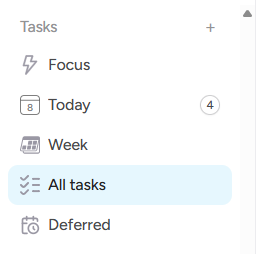
You can easily focus on one Task, or pull back and review all your Tasks. Use the left-hand menu.
-
Click All Tasks to see every Task you have.
-
Click Week to see any Tasks that are due this week, and the day they are due.
-
Click Today to see any Tasks that you are working on today.
-
Click Focus to select a single Task that you are working on right now.
-
It can be stressful managing lots of Tasks, so you can defer a Task, which means it disappears until a later date. But you can find your deferred Tasks if you need to by clicking Deferred on the left.
-
Quickly add tasks to Today or Week by typing the "@" character to bring up Tasks.
Creating and Editing Tasks
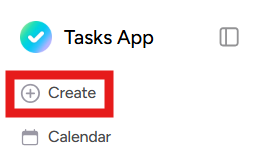
Click Create at the top-left to create a new Task at any time.
Go to Today, Week or All on the left and you can create a Task by clicking in a blank Task and typing. If you create it in Today, then it is automatically due today, and if you create it in Week then it is automatically due on that day of the week.
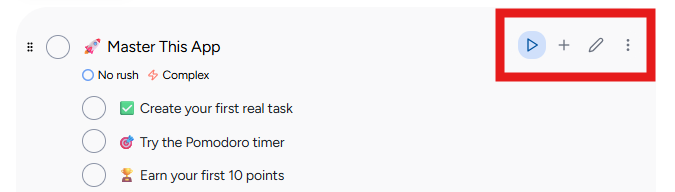
Hover over a Task with the mouse and you’ll see lots of options appear to the right: click the pencil icon to edit a task.
Subtasks
Tasks can have subtasks to help you break down work into smaller do-able chunks. Hover over a Task with the mouse and you’ll see an option to add subtasks appear to the right: click the plus icon.
Completing, Deferring and Deleting Tasks
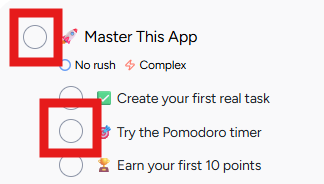
Just tick the box next to a Task to show it is done.
Tasks can be hidden so they are not stressing you out: hover over a Task with the mouse and you will see a three-dot option, select that, and you can Defer a Task. It will disappear until the later date you provide. You can always find it again in Deferred on the left.
You can also select Delete from the three-dot option and the Task will be removed entirely.
About a Task
The more you define a Task, the better Tasks can organise it for you:
-
Interest says how much you want to do the Task.
-
Effort and Estimated Time are guides to how long it will take.
-
Priority and Due Date set when it needs to be done and how important it is.
You can see all of Interest, Effort and Priority as badges on Tasks when you look at Tasks in Today, Week, or All, so you can select one that you feel like you can do. 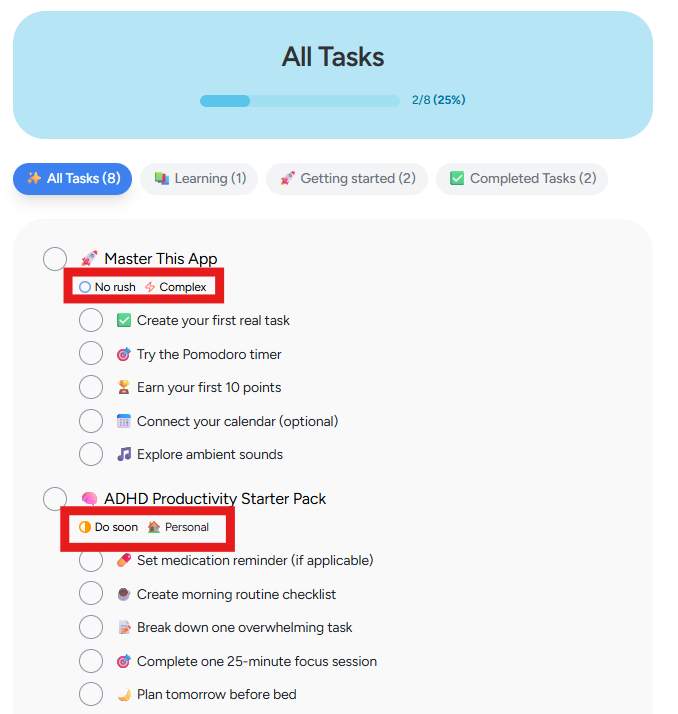
Recurring tasks
Tasks now appear when you need them. You can set them to repeat daily, weekly, monthly, or quarterly from the date picker.
When you complete one, the next instance is created automatically.

Projects
You can categorise Tasks into larger Projects to help you keep track of them. Choose from your Projects on the left, and you’ll see Tasks in that Project. Edit a Task and you’ll find you can set the Tasks project.
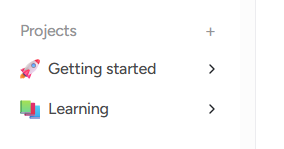
When you are done with a Project you can archive it: choose the Project on the left, then click on the three dots at the top right and select Archive.
Focus
It’s easy to get lost in a Task and not take a break, or to have your attention wander.
Select one Task to focus on doing by hovering over it with the mouse and clicking the Focus option, or click on Focus on the left and select a Task.
You can then activate a timer or some ambient sounds to help you stay on track to get it done, but be reminded to take breaks.
The Focus time and break time can be changed in Settings: it’s not related to the Task time, but the time you can stay focused and how long you need to break.
You can search for a Tasks to find it quickly by using the Search box at the top.
Timeboxing / Calendar
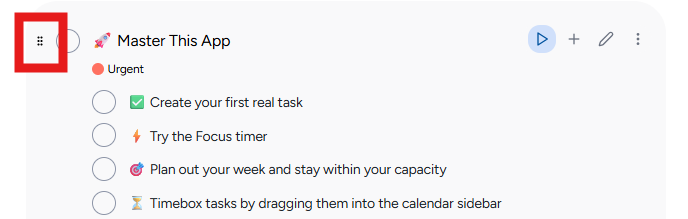
When you hover over a Task you'll see a little drag handle appear. You can then drag a Task to the Calendar on the right to give it a time you will do it. You can make it longer and shorter and move it around in the Calendar.
If you sign into your Microsoft or Google Calendar, then this will appear in your calendar in Office or Gmail as a real event and sync up.
- You can also stop focus time appearing in your Google Calendar by untoggling "Show focus time events" in Settings. (Microsoft Calendar does not have focus time.)
Reminders hub
There’s now a dedicated Reminders page for tasks that are due, overdue, or coming up.
You can also set a daily check-in reminder to review upcoming tasks.
Settings
-
Appearance and Language.
-
Select English, Swedish, Norwegian, or Danish language.
-
Select Light or Dark theme.
-
-
Task Settings
-
Hide the badges below Tasks to reduce clutter (or show them to help your structure your work)
-
Move completed Tasks to the bottom of the list to get them out of the way, or leave them where they were so you can order them manually and stay in control.
-
Only edit Tasks in the pop-up Tasks dialog, or make quick changes by double-clicking on the Task.
-
Turn on hourly capacity tracking, so Tasks keeps track of how much time you have committed.
-
Turn on a hard daily capacity limit, so Tasks stops you trying to take on too much.
-
-
Focus Settings. Change Focus and break times, like the length of a break.
-
Calendar Integration. Connect and disconnect your Microsoft and Google calendars. Have focus time show in Calendar.
-
Notifications. Enable or disable in-app and desktop notifications.
-
Reset app. Delete all your data.