MindView 9 introduces a powerful, innovative AI feature that is designed to significantly elevate the functionality and creative potential of your mind maps. This fantastic new capability allows you to effortlessly translate concepts, refine existing ideas, and receive intelligent suggestions directly within your mind map. It's the key to unlocking your next big breakthrough!
Quickly Manage AI Access for Your Team
As an Admin user for your organization, you have complete control and can disable this functionality for all your users in just a few clicks.
Here are the exact steps to implement this change:
-
Go to your MindView Suite Accounts Portal: Head directly to the management hub at https://accounts.matchware.com/
-
Select Settings: Once logged in, click the Settings option.
-
Scroll and Untick: Navigate down to the AI suggestions option and simply untick the checkbox.
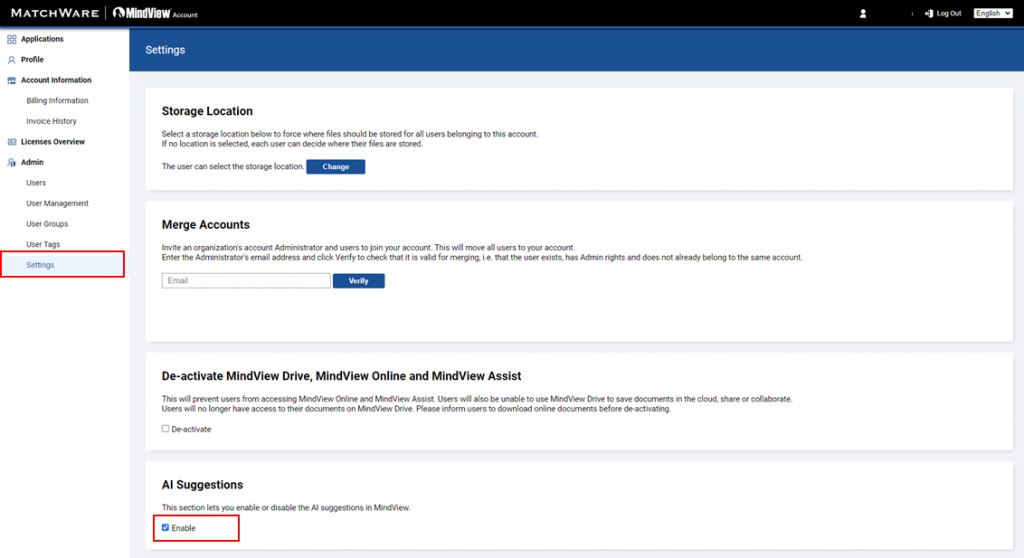
That’s it! This definitive action will immediately apply the change across your entire organization.
Disabling AI During System Installation
For System Administrators who manage the software deployment, you can disable the AI feature right when you install the MindView package!
To effortlessly implement this change, use the Windows Installer property:
-
ENABLEAI=0
This will implement the change and ensure the feature is disabled for all users upon installation.
For more information on the administrative installation process, you will find all the details you need in our comprehensive MindView 9 Technical Specification document: https://link.matchware.com/mv9_technical_spec