The warning message below appears when the Admin is trying to add a user who already belongs to another account. The most common reason why this happens is that the user has previously created their own account when signing up for a trial.
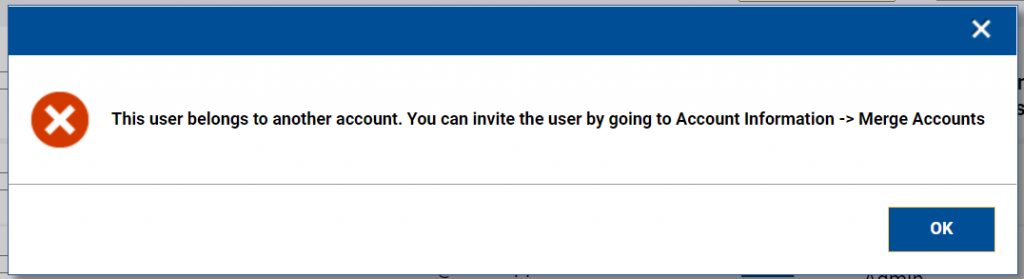
Your Fast Track to Merging Accounts
Merging the accounts will seamlessly bring your team member under your administrative control and unlock a huge boost in team management!
-
Sign In: As the Admin, head over to https://accounts.matchware.com and sign in.
-
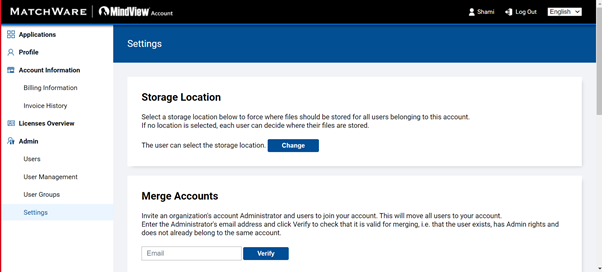
Find the Merge Feature: Go to Admin > Settings.
-
Enter the Email: In the Merge Accounts field, simply type in the user's email address.
-
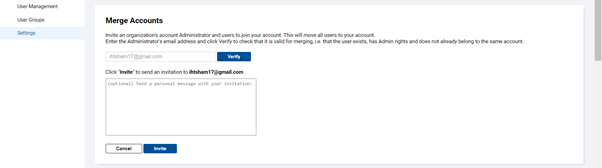
Send the Invitation: Once you verify the user exists on a different account, you can confidently send the invitation. This will initiate the fantastic process of moving them over!
-
User Accepts: Your team member just needs to click the link in the message they receive. That's the key to finalizing the merge and getting them set up on your account!
This will implement the change instantly. You'll see your user ready to go, and that's the powerful solution to saving you time next week!